Configuration View Screen
The Configuration View screen on the dlrSecured Identity Management web site is used to define the verification settings to use at your dealership, such as verification frequency settings and restrictions to Email address domains used for multifactor authentication (MFA).
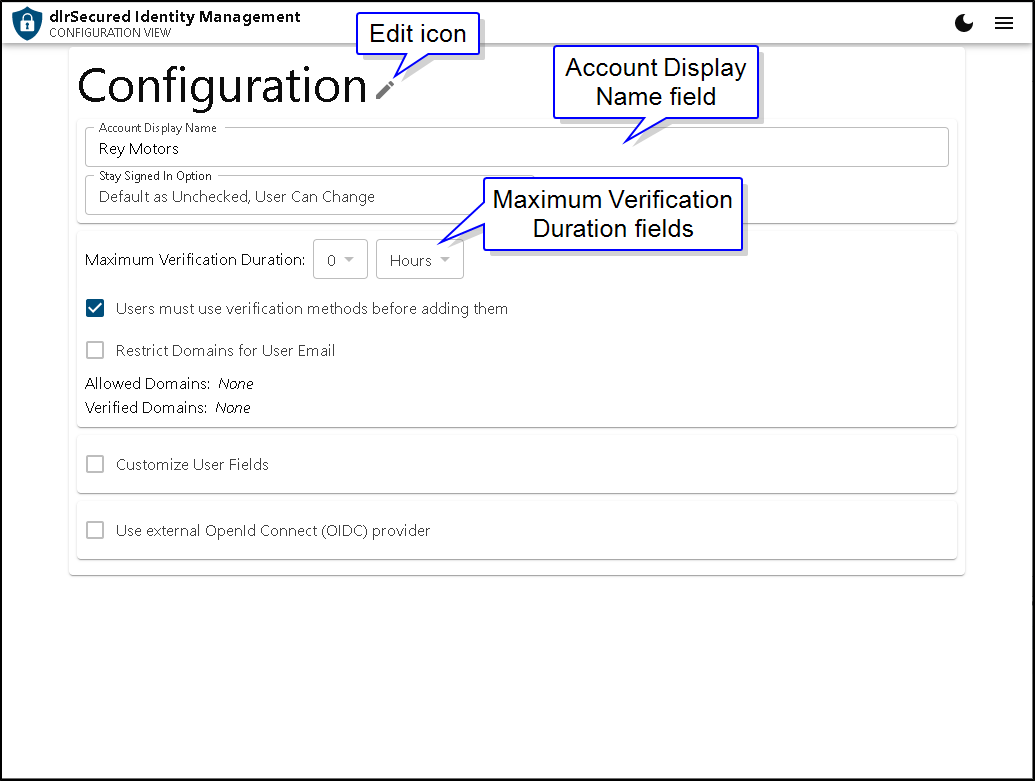
To update information on this screen, click the  (Edit) icon. The screen displays in Editing mode, and the information can be updated as needed.
The following settings can be defined using the Configuration View screen.
-
Name of the dlrSecured enterprise. Use the Account Display Name field to define a name for the dlrSecured enterprise.
-
Settings for staying signed on to dlrSecured.TheStay Signed In Option field is used to define whether the Stay signed in check box on the dlrSecured Identity Management web site is automatically selected or cleared when users sign on to dlrSecured. In addition, this field is used to define whether users can update the Stay signed in check box when signing on. For example, select Default as Unchecked, User Can Change in this field to automatically clear the Stay signed in check box but allow users to select the check box as needed.
Note - When a user selects the Stay signed in check box, the check box is automatically selected each time he signs on to dlrSecured.
-
Frequency that multifactor authentication is required. The Maximum Verification Duration fields can be used to determine how frequently employees are required to complete the MFA process. Settings can be defined for a specific of number of hours, days, or weeks. For example, enter 0 in the first field and Hours in the second field to require employees to complete MFA each time they sign on to the XtreamService application.
-
Require employees to confirm verification methods. The Users must use verification methods before adding them check box is used to determine whether employees must prove they can use a new verification method before it is added by entering a verification code on the Verification Code window.

Administrators are not required to enter verification codes when adding verification methods for other employees on the dlrSecured web site; however, administrators must enter verification codes when updating their own verification methods.
-
Valid domains for dlrSecured Email addresses. These fields can be used to restrict Email addresses used with dlrSecured to the dealership Email address domain. To restrict the domains allowed for Email addresses linked to dlrSecured, select the Restrict Domains for User Email check box. Then click the
 (Add) icon next to the Allowed Domains field and enter the allowed domains.
 -
Third-party authentication products. The Use external OpenID Connect (OIDC) provider check box and the Use external SCIM provider check box can be selected to allow third-party authentication products, such as Microsoft Azure or Okta®, to integrate with the dlrSecured feature for a single sign-on process.
Once settings have been updated, click the SAVE button to save the changes.
Click here for a list of products that may be mentioned in this help file.